Servers and connections
A server is a host Heinzel works on over SSH: with a key Heinzel Pro generated itself, as a user you name, under a ceiling you set.
Adding a server
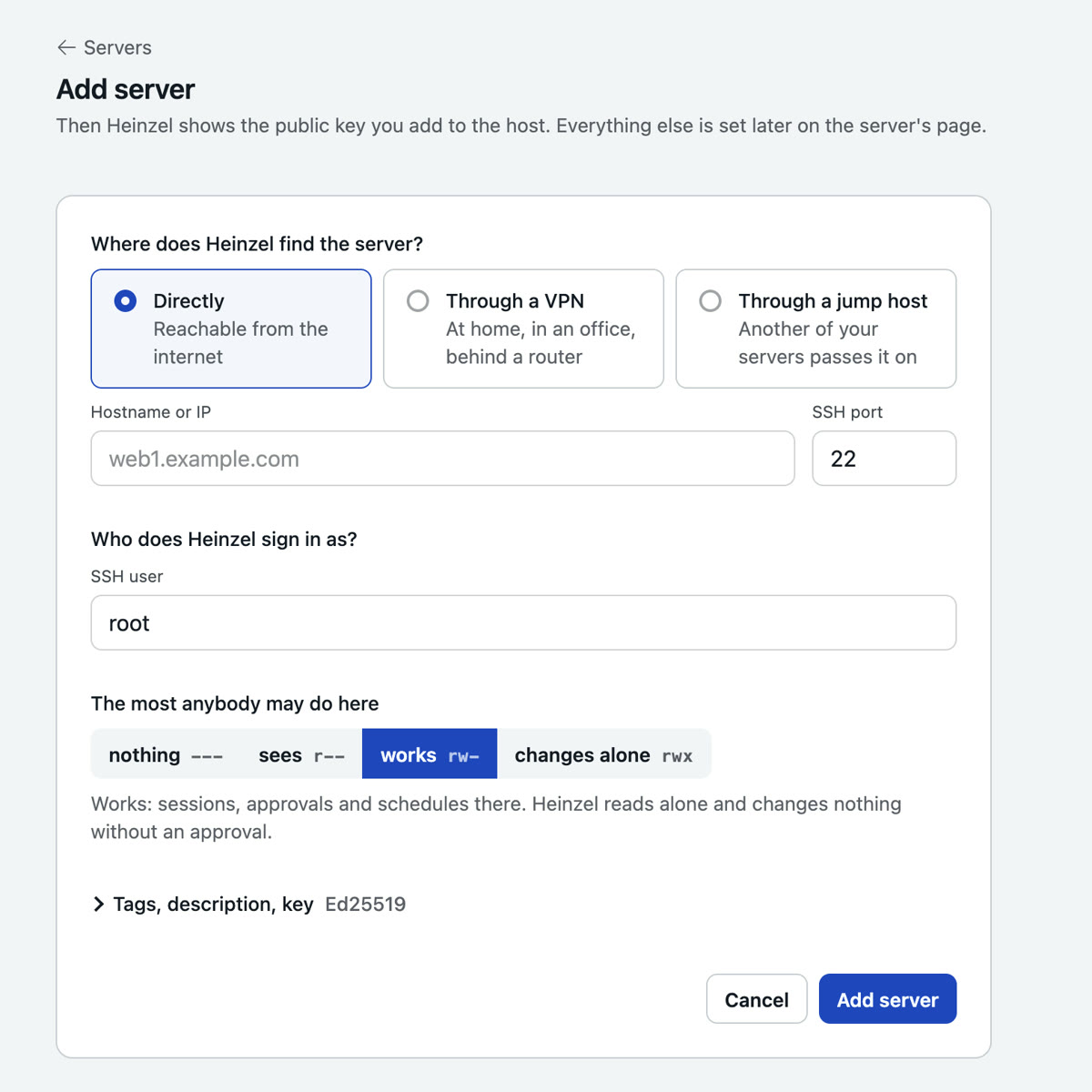
| Field | Meaning | Example |
|---|---|---|
| Where Heinzel finds the server | Directly from the internet, over a VPN connection, or over one of your servers as a jump host. | Direct |
| Hostname or IP, port | A name follows its DNS; an address stays what it is. Two servers with the same address and port cannot exist in one tenant. | web01.example.com, 22 |
| SSH user | The first login. root, or a user with sudo without a password. Further logins are added on the server's page. | heinzel |
| The most anybody may do here | The ceiling: --- blocks, r-- read only, rw- work with an approval before every change, rwx Heinzel changes alone. Only an administrator raises it to rwx. | rw- |
| Tags, description, key | Tags as words or key:value; the server list filters by them, and schedules can name tags instead of servers. The key: one of its own (default) or a shared one. Ed25519, ECDSA or RSA 4096 on request. | env:prod role:web |
Preparing the host
After saving, the server's page shows the public key under "Key and host key". It goes into the authorized_keys of every user Heinzel is to sign in as. Three ways, by system.
Debian, Ubuntu, RHEL, Rocky, Alma, SUSE
# As root on the host. Copy the key line from the server's page.
$ useradd --create-home --shell /bin/bash --comment "Heinzel Pro" heinzel
$ install -d -m 700 -o heinzel -g heinzel /home/heinzel/.ssh
$ echo "ssh-ed25519 AAAAC3NzaC1lZDI1NTE5AAAAI… heinzel-pro" \
  > /home/heinzel/.ssh/authorized_keys
$ chown heinzel:heinzel /home/heinzel/.ssh/authorized_keys
$ chmod 600 /home/heinzel/.ssh/authorized_keys
$ echo "heinzel ALL=(ALL) NOPASSWD: ALL" > /etc/sudoers.d/heinzel
$ chmod 440 /etc/sudoers.d/heinzel
$ visudo -c   # checks the syntax; a typo locks sudo for everybody
FreeBSD
$ pw useradd heinzel -m -c "Heinzel Pro" -s /bin/sh -G wheel
$ install -d -m 700 -o heinzel -g heinzel /home/heinzel/.ssh
$ echo "ssh-ed25519 AAAAC3NzaC1lZDI1NTE5AAAAI… heinzel-pro" \
  > /home/heinzel/.ssh/authorized_keys
$ chown heinzel:heinzel /home/heinzel/.ssh/authorized_keys
$ chmod 600 /home/heinzel/.ssh/authorized_keys
$ pkg install -y sudo
$ echo "heinzel ALL=(ALL) NOPASSWD: ALL" > /usr/local/etc/sudoers.d/heinzel
macOS
Switch on Remote Login (System Settings, General, Sharing, Remote Login), put the key into the ~/.ssh/authorized_keys of an administrator account and give that account NOPASSWD in /etc/sudoers.d/heinzel. The rule set has a rule of its own for macOS.
What else the host needs:
- OpenSSH with public-key authentication; Heinzel Pro never uses passwords. A host that accepts certificates only (
AuthorizedKeysFile none) cannot be managed. - For RSA keys OpenSSH 7.2 or later, because Heinzel Pro signs with SHA-2 only.
sh,nohupand a home directory the user may write to: a command that changes something runs as a job in~/.heinzel/jobs/and so survives a restart of Heinzel Pro. Without that, it runs in the SSH channel like a reading command.
Testing
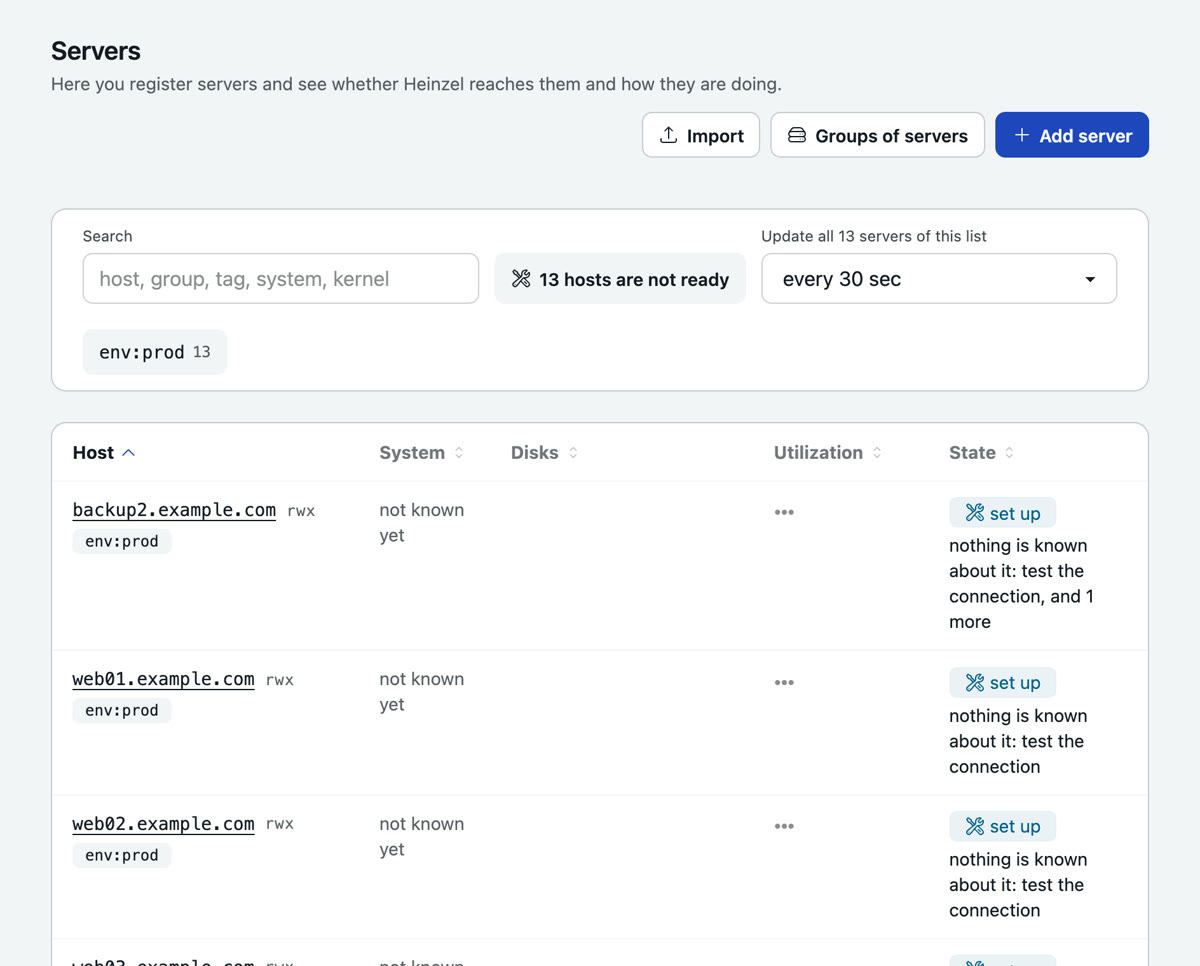
Test on the server's page signs in, stores the host key, detects system, disks and uptime, and from then on fetches load, memory, temperature and disks at the pace you give the list, from node_exporter where one runs, else from /proc and /sys. A changed host key refuses the connection from then on, marks the server and alerts the administrators; if a host was reinstalled, press "Trust new host key".
Logins
A login is a user Heinzel signs in as. A server has one or more, such as root for the administrators and deploy without sudo for everybody else. The server's key opens each of them; put it into every user's authorized_keys. Whoever opens a session chooses the login where there is more than one.
- A login has a ceiling of its own that only lowers:
root@web1withr--lets everybody read as root while they work asdeploy. - A server's form holds, under "Stricter on this server", a cell of the tenant's matrix stricter, never milder: on
db02a reboot waits for two people, everywhere else for one. The matrix is under Rights. - A login can name who uses it: nobody ticked means everybody who reaches the server; a team ticked means that team only.
- Without sudo: with the box unticked, Heinzel refuses every command that contains
sudo,doas,su,pkexecorrun0. A net, not a wall: what the user really may do is in the host's sudoers file. - A login nobody needs any more is retired, not deleted: old sessions keep showing who they worked as.
Keys
Heinzel Pro generates every private key itself, stores it encrypted and never hands it out. Uploading a key is impossible on purpose: a key that also lies on a laptop could not be withdrawn from Heinzel Pro, and its use could not be told from a person's.
- A key per server (default): a compromised host tells nothing about the others.
- A shared key (Administration, SSH keys): one pair for many hosts, so that configuration management puts one line everywhere. Rotation keeps the old key as "retired" until every host has the new line.
- Renew key on the server's page generates a new pair; the old key works until you have entered the new one.
Give every host a user heinzel of its own instead of personal accounts: then host logs and audit log tell the same story, and the audit log says which person asked for what.
Many servers at once
Servers, Import takes a host list, a CSV, the host blocks of an ssh_config or an Ansible inventory. Nothing is contacted: the servers are created, and a script the page offers afterwards puts the keys onto the hosts with your own access.
# One line per host, as [user@]host[:port]
deploy@web1.example.com:2222
web2.example.com
db1.example.com

# Or as CSV: hostname,port,user,description
web01.example.com,22,heinzel,Web server customer portal
web02.example.com,22,heinzel,Web server customer portal
db01.example.com,22,root,PostgreSQL primary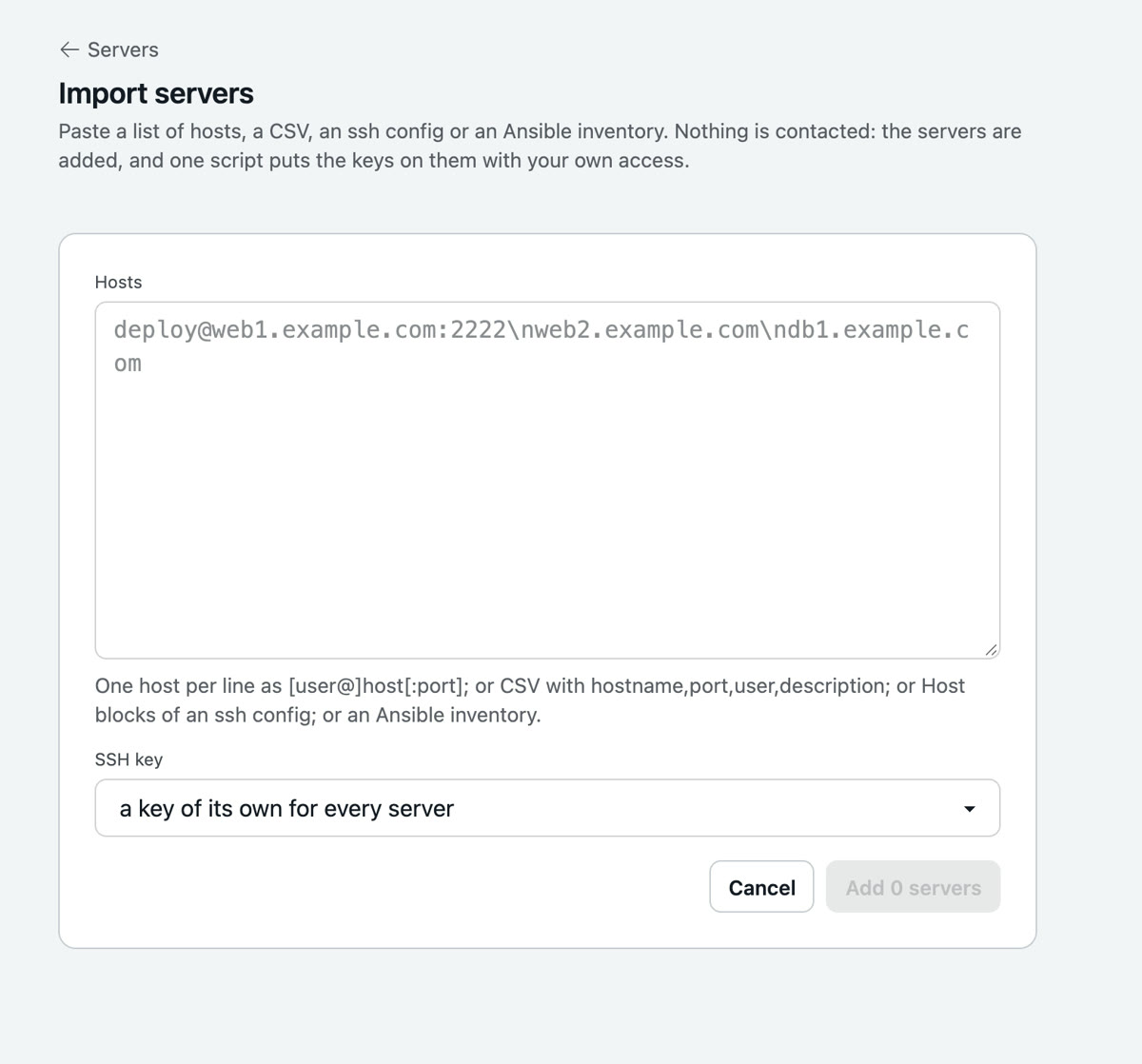
For a script or a pipeline the same exists as POST /api/v1/<tenant>/servers; see API.
Behind a jump host
If a host accepts SSH from a bastion host only, add the bastion host as a server and name it at the target under "Over a jump host". Heinzel connects there with the bastion host's key and stored host key, tunnels on and signs in at the target with its own key. The bastion host must allow TCP forwarding (AllowTcpForwarding yes in its sshd_config, the default); one hop is supported.
Servers without a public address: VPN
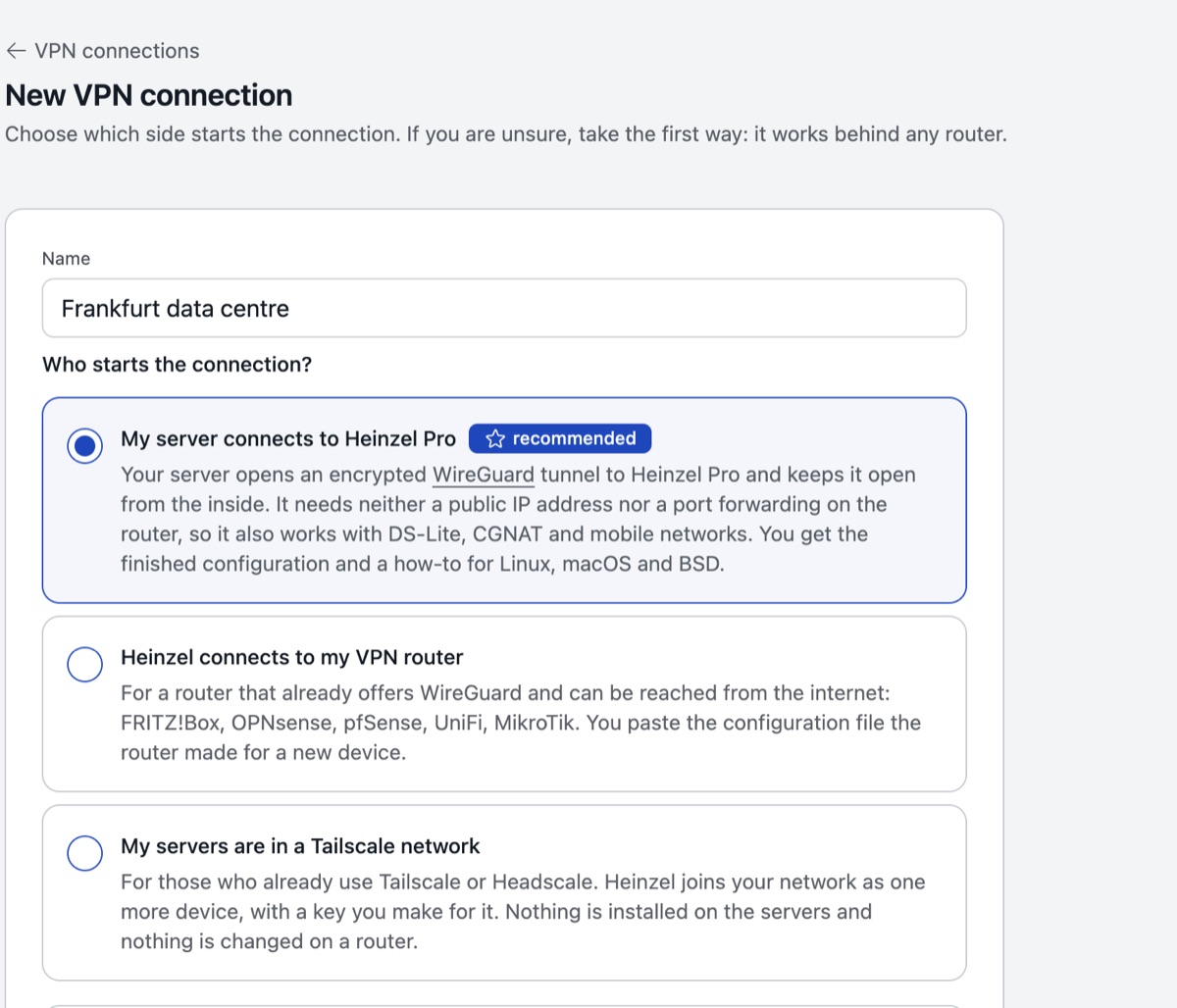
Behind the router at home, in the office network, in a cloud without a public IP: a VPN connection is a WireGuard tunnel between Heinzel Pro and your network. Through it Heinzel signs in over SSH, with the same key and host key as everywhere. Administrators create connections under Administration, VPN. Three ways:
| Way 1: your server connects to Heinzel | Way 2: Heinzel connects to your router | Way 3: Heinzel as a device in your Tailscale network | |
|---|---|---|---|
| Fits | always, even without a public IP (DS-Lite, CGNAT, mobile) | when the router offers WireGuard and is reachable from the internet | when you already use Tailscale or Headscale |
| You need | a terminal on a Linux machine in the network and sudo | the router's configuration file | an auth key from the admin console |
| At the router | nothing | a new WireGuard device | nothing |
Way 1, step by step
Create the connection. VPN, New VPN connection, "My server connects to Heinzel", a name, save.
Install WireGuard.
$ sudo apt install wireguard          # Debian, Ubuntu
$ sudo dnf install wireguard-tools    # Fedora, RHEL, Alma, Rocky
Paste the block. The connection's page shows a block to copy. Pasted into the machine's terminal, it saves
/etc/wireguard/heinzel.confand starts the tunnel, now and after every reboot. The block holds the connection's key; treat it like a password.Wait for "connected". Usually within ten seconds; the page refreshes itself.
"Add this machine as a server". Address and connection are filled in. Then as with every server: enter the key, test.
A whole network through one machine: devices without WireGuard (a NAS, a switch) Heinzel reaches through a Linux machine in the same network that is always on. Enter the network when creating the connection, such as 192.168.1.0/24; the block sets up the forwarding too. Switching off is yours at any time: sudo systemctl disable --now wg-quick@heinzel
Way 2
Add Heinzel at the router like a laptop, as a new WireGuard device, and paste the configuration file the router then offers under "Heinzel connects to my VPN router". FRITZ!Box: Internet, Permit Access, VPN (WireGuard), Add connection, Connect a single device, Download settings; the box needs a MyFRITZ! address and a public IP, on a DS-Lite line take way 1. Add servers with the address they have in your network, such as 192.168.178.20, and choose the connection.
Way 3
Generate an auth key in the Tailscale console (not "Ephemeral", with a tag such as tag:heinzel so the device does not expire), enter it in Heinzel under "My servers are in a Tailscale network", for Headscale plus the address of the control server. Heinzel joins as the device heinzel, uses the key once and forgets it. Allow the device only the managed servers on their SSH port in your access rules, and add the servers with their Tailscale address (100.…) or name. Tailscale SSH is not used; Heinzel signs in at the ordinary sshd.
What Heinzel knows about a server
- Memory (server page, "What Heinzel knows"): operating system, services, paths, quirks. Heinzel updates it after the work; you can edit it. Every session reads it first.
- Journal: every change on the server with its command, plus your notes by hand ("customer wants no restarts on Tuesdays").
- Handover: a Markdown file with everything stored about the server, for the colleague who takes it over. No model writes it.
- Handover notes on the host: a line in the host's system journal after every change, for everybody with shell access and for a second Heinzel instance. Two boxes in the server form (leave, read), both on at first. Wording under Settings, Policy.
$ journalctl -t heinzel
heinzel: [Anna Berg/root] Updated nginx to 1.28.0, because the old version had a security hole
         https://app.heinzel-pro.de/example/sessions/0199e2c4-…
Locking a host without opening Heinzel Pro
Whoever is root on a host holds Heinzel back with a file that the open Heinzel honours too:
# /etc/heinzel.conf
allow_changes = false
reason = Database migration until 20 October
Before every changing command Heinzel Pro reads the file. Only a missing file or allow_changes = true lets the change through; everything else refuses it, with the owner's reason on the command. Reading goes on. The classifier blocks every command that writes or deletes the file, so only the owner lifts the lock.