Getting started
From the invitation to the first approval. A quarter of an hour, if the server Heinzel is to work on is already there. We follow Anna Berg, administrator at Example Ltd, through her first day.
1. Sign in and set up the account
You get a mail with a sign-in link. It works once and for 15 minutes; whoever opens it is signed in and sets a password first. In an installation of your own the first person registers at /auth/register, becomes administrator of the installation, and after that registration is closed; everybody else is invited.
Under Account and sign-in you then set up what you will sign in with from now on:
- Passkey: fingerprint, face or device PIN. A passkey counts as both factors, so the second factor is skipped when you sign in with it.
- Two-factor authentication: a code from an authenticator app. If the installation requires a second factor, set it up here even with a passkey, because signing in with a password stays possible. Then put the recovery codes away.
- Devices: every sign-in is a session in one browser. A device you do not recognise you sign out here, and its pages close at once.
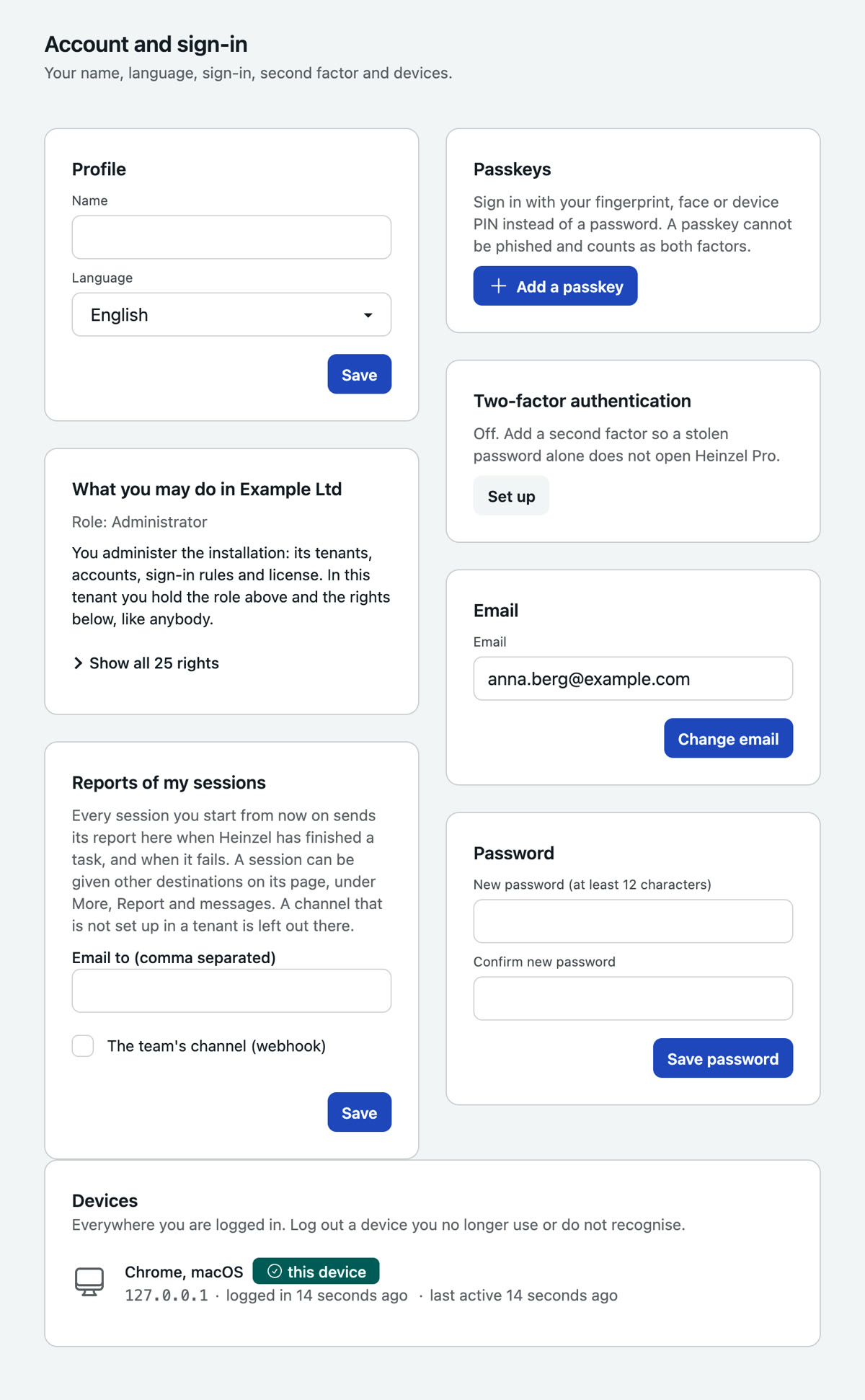
Example: Anna opens the link from the mail, sets a password of twelve characters, adds a passkey with her laptop's fingerprint reader and sets up the authenticator app beside it, because her company requires the second factor. Three minutes.
2. Read the dashboard
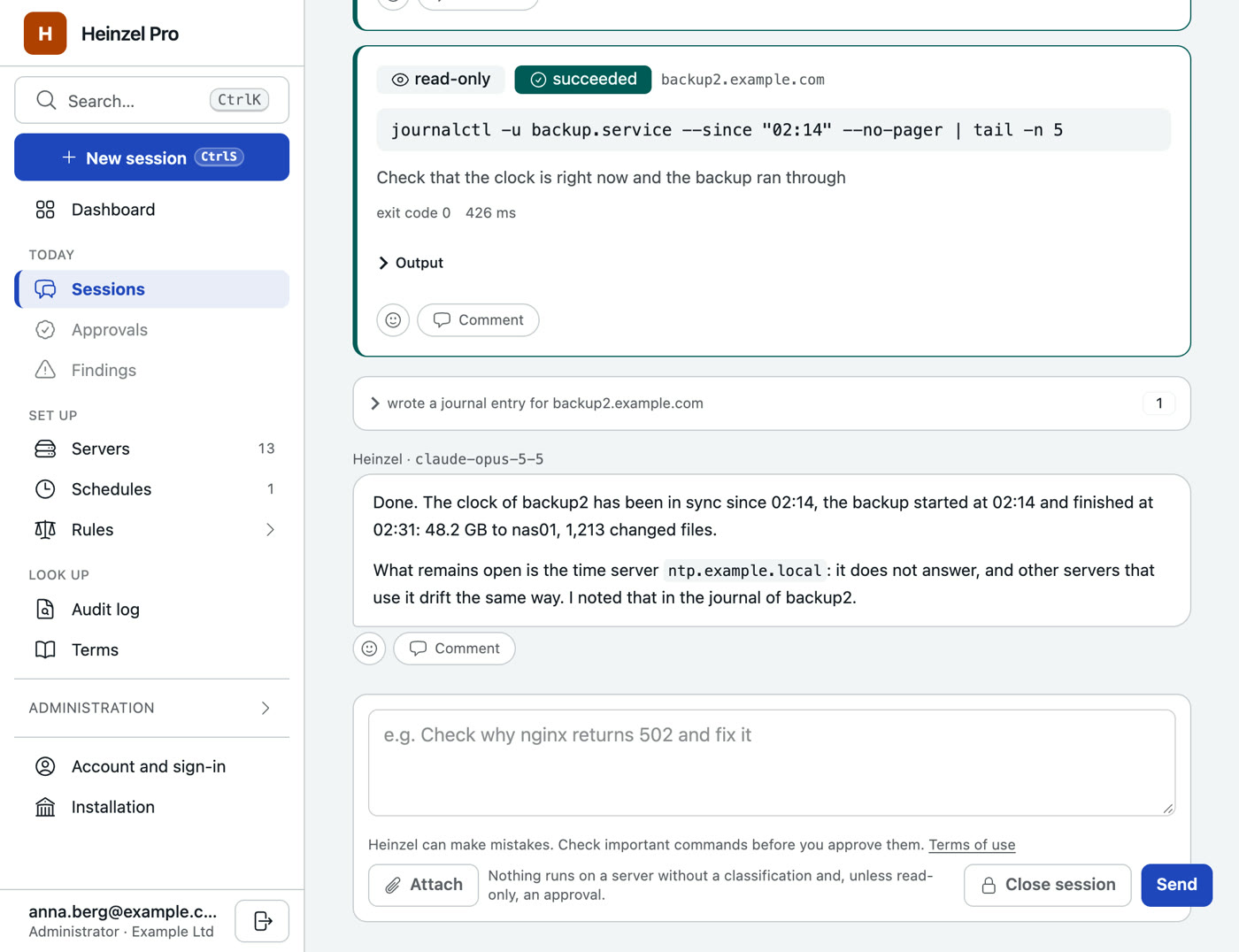
After signing in you land on the Dashboard. At the top stands what needs a person today: waiting approvals, failed sessions, servers still to be set up. The navigation on the left has four parts.
| Part | Pages | What for |
|---|---|---|
| Today | Sessions, Approvals, Findings | The daily work: giving tasks, approving commands, working off the problems a nightly run found. |
| Set up | Servers, Schedules, Rules | What Heinzel looks after, when it checks on its own, and the rule set it works by. |
| Look up | Audit log, Terms | Who did what when, and what every word of the interface means. |
| Administration | Users, groups, settings, VPN, SSH keys, secrets, API tokens and more | For administrators. Folded until needed. At the very bottom: Account, and for administrators of the installation the entry Installation. |
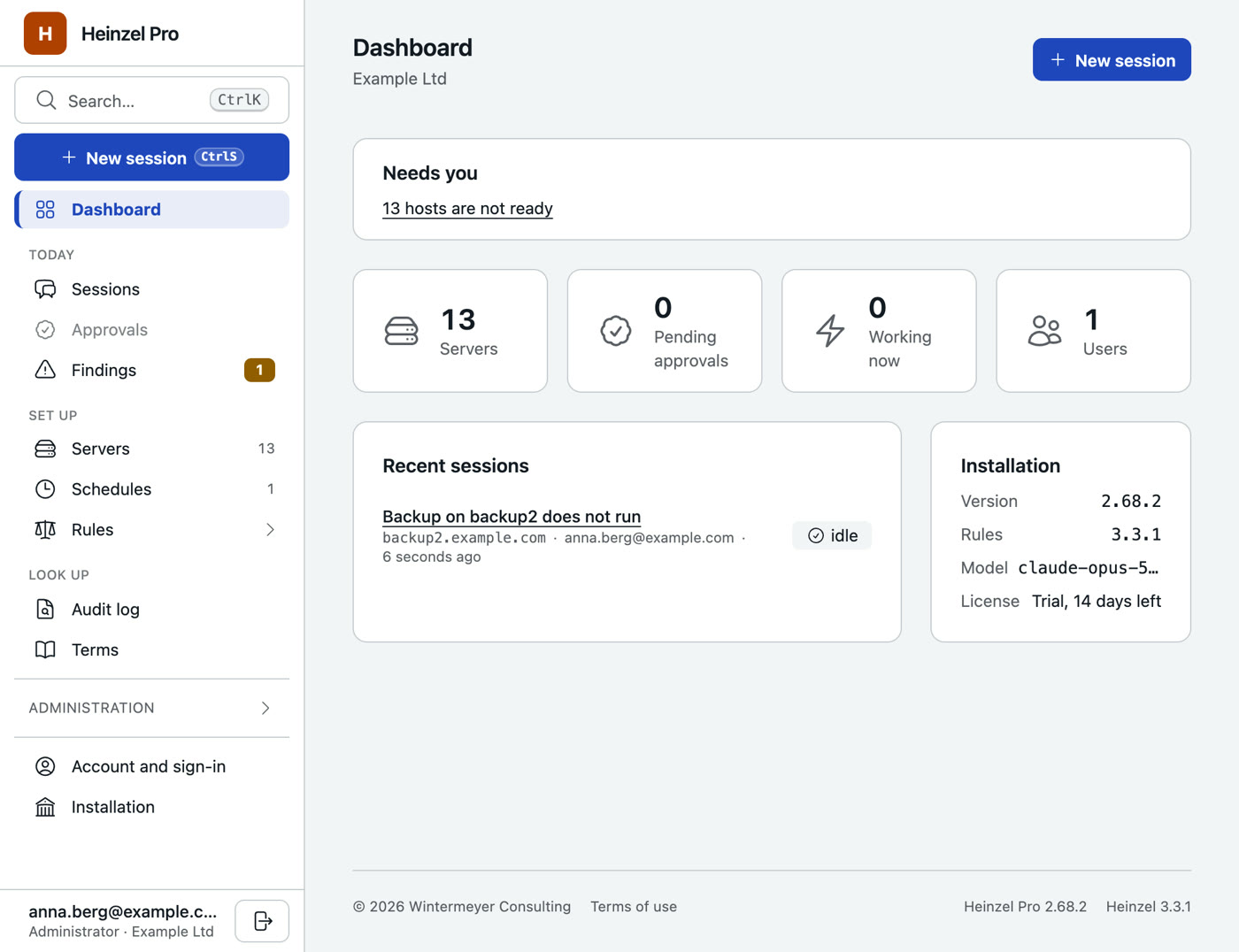
Ctrl+K opens the search anywhere: servers, sessions, commands, pages. Ctrl+S a new session.
3. Connect the model
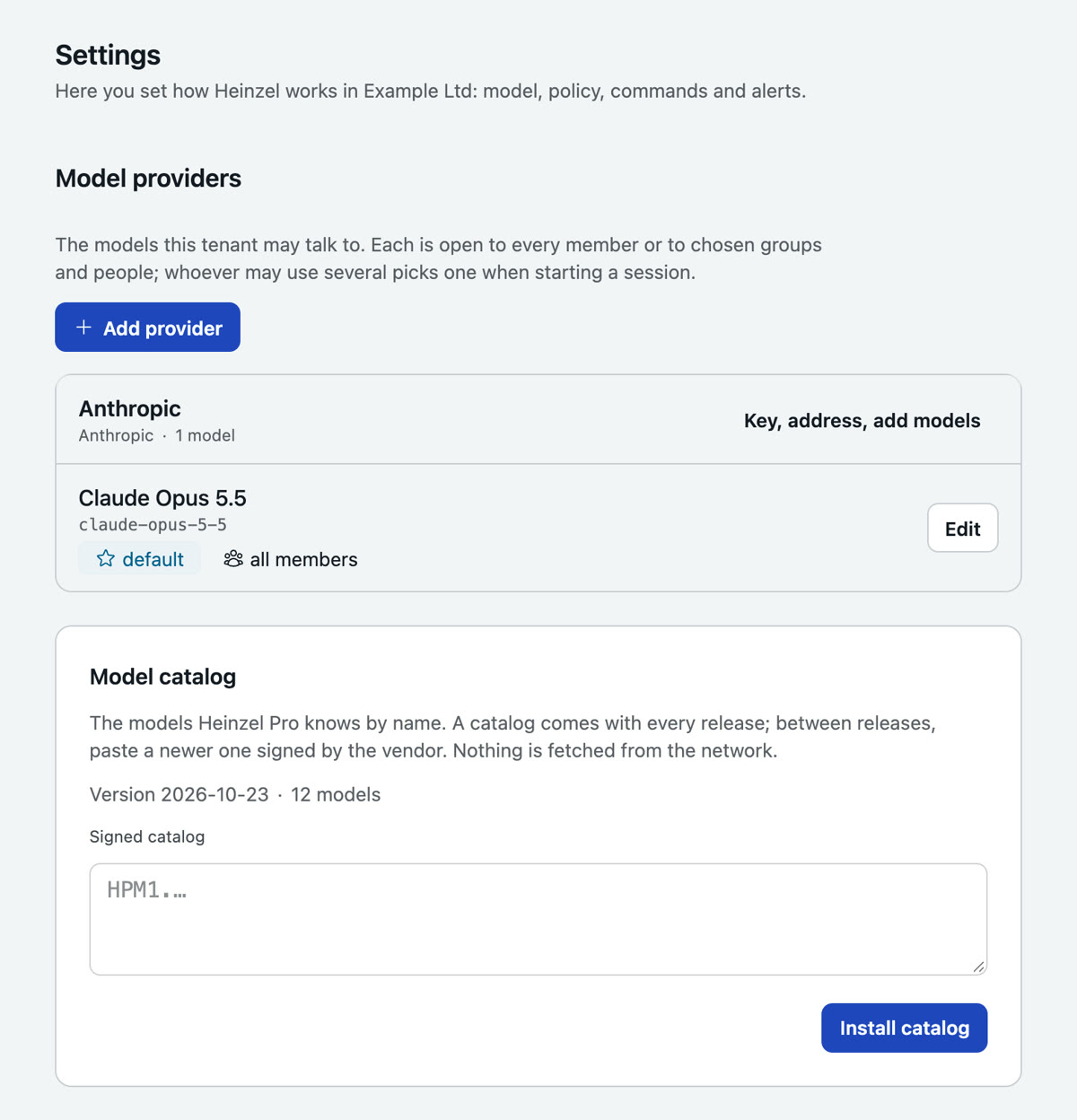
Heinzel Pro brings no model of its own. It talks to the provider whose key you enter; hosted with us that is already done, on your own premises the administrator does it once. Under Administration, Settings, Model providers:
- Add a provider. A name ("Anthropic"), the kind (Anthropic or OpenAI-compatible) and the API key. The key is stored encrypted and never shown again; an empty field when editing keeps it.
- Tick the models. The catalog knows the current models by name; any other ID can be typed in. Three are typical: a balanced one for everybody, the strongest for the experienced team, the fastest for small things.
- Test. One button, one request, one answer. Save only then.
4. Add the first server
Under Servers, Add server three things: where Heinzel finds the server, who it signs in as, and the most anybody may do there.
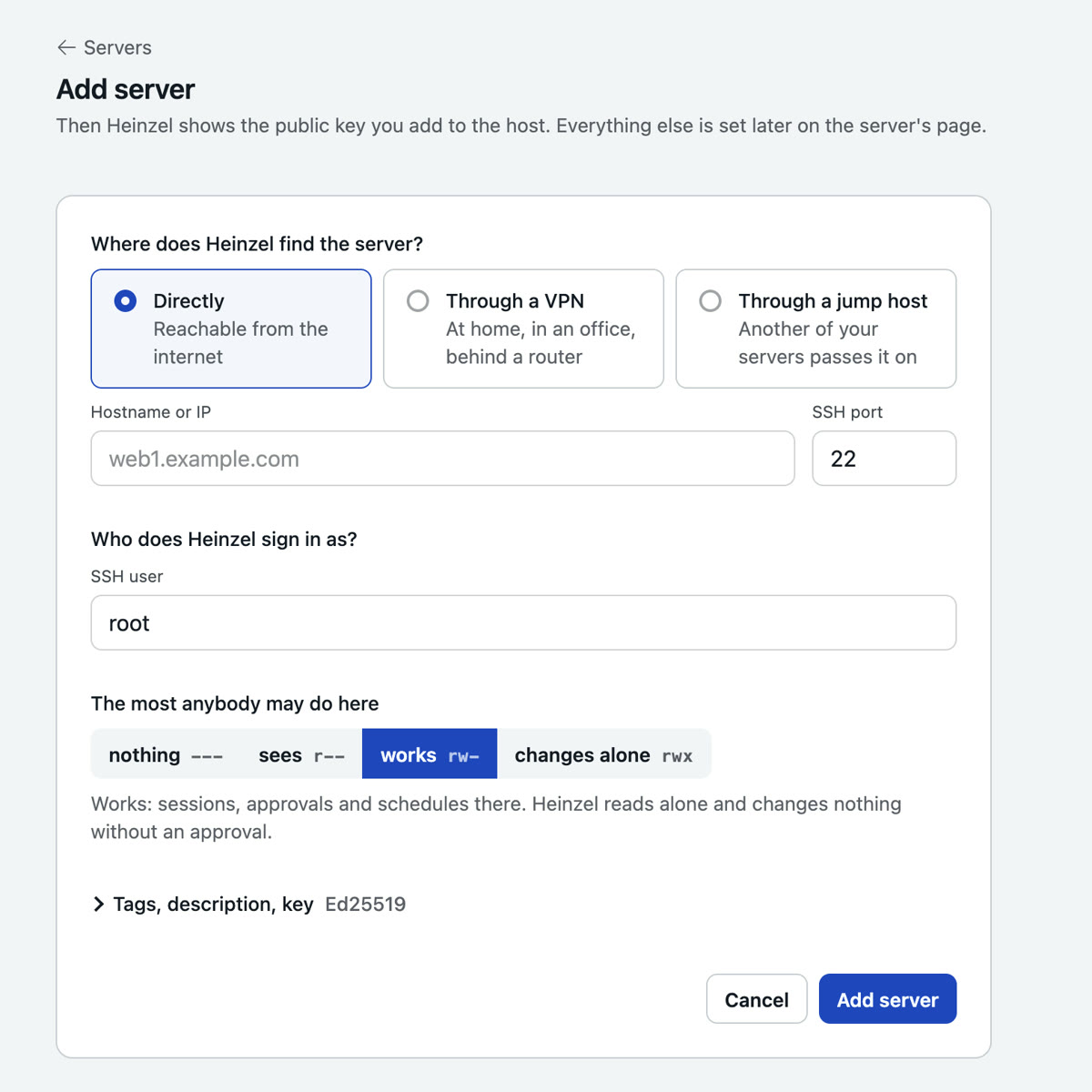
Example: Anna enters web01.example.com, port 22, user heinzel, ceiling rw-. After saving, the server's page shows the public key Heinzel Pro has just generated. The private key never leaves the application.
On the server, as root, once:
# A user of Heinzel's own, with sudo without a password
$ adduser --disabled-password --gecos "Heinzel Pro" heinzel
$ install -d -m 700 -o heinzel -g heinzel /home/heinzel/.ssh
$ echo "ssh-ed25519 AAAAC3NzaC1lZDI1NTE5AAAAI… heinzel-pro" \
  > /home/heinzel/.ssh/authorized_keys
$ chown heinzel:heinzel /home/heinzel/.ssh/authorized_keys
$ chmod 600 /home/heinzel/.ssh/authorized_keys
$ echo "heinzel ALL=(ALL) NOPASSWD: ALL" > /etc/sudoers.d/heinzel
$ chmod 440 /etc/sudoers.d/heinzel
The key line you copy from the server's page. Then Test: Heinzel Pro signs in, stores the server's host key and shows system, disks and uptime. From now on it refuses the connection should the host key ever change.
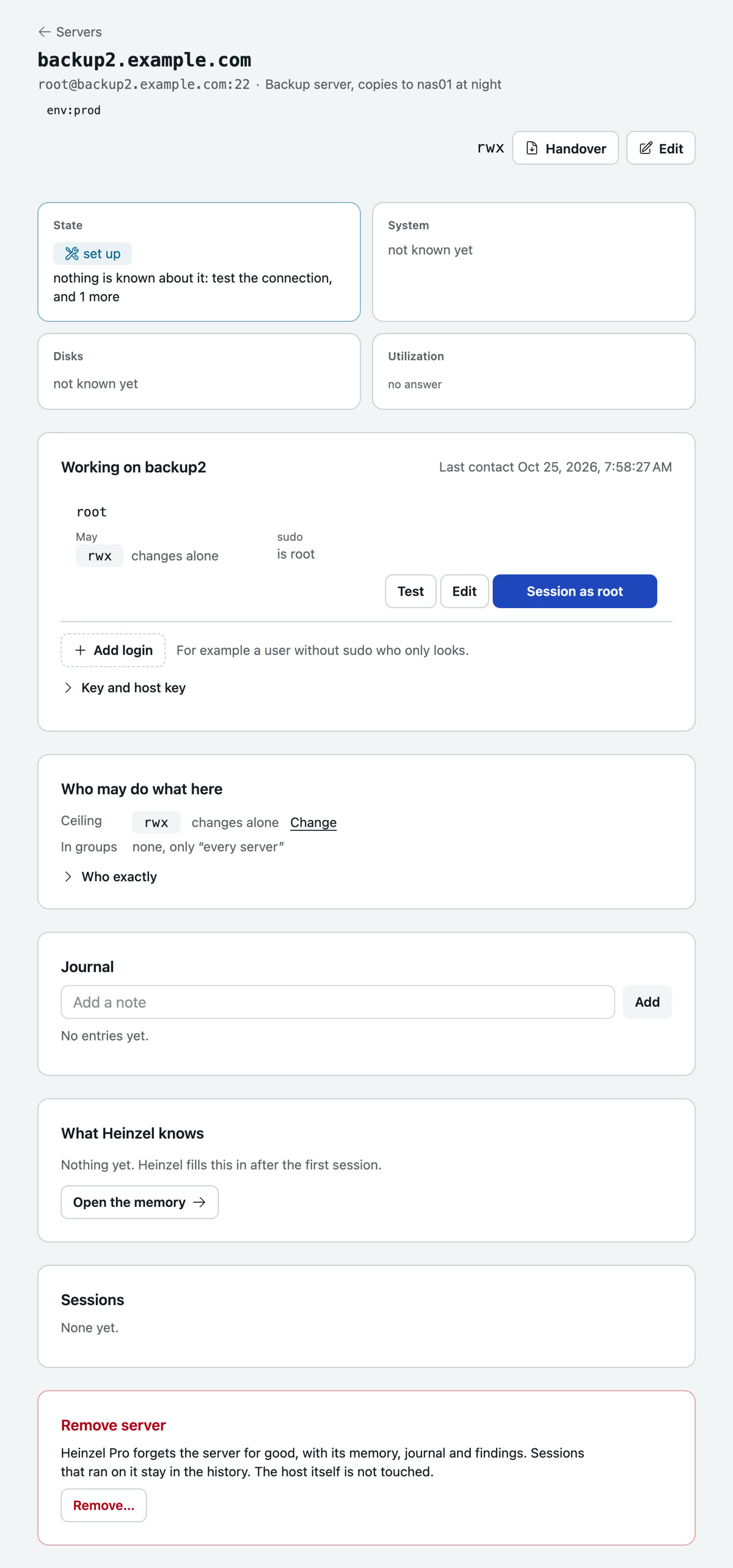
More on this, jump hosts, VPN and importing many servers at once included, in Servers and connections.
5. The first session
New session: choose the server, leave the level as it is, and write the task in one sentence. No command, no jargon.
Anna's first task on web01:
Input: Which services run on web01, and are there pending security updates? Only look, change nothing.
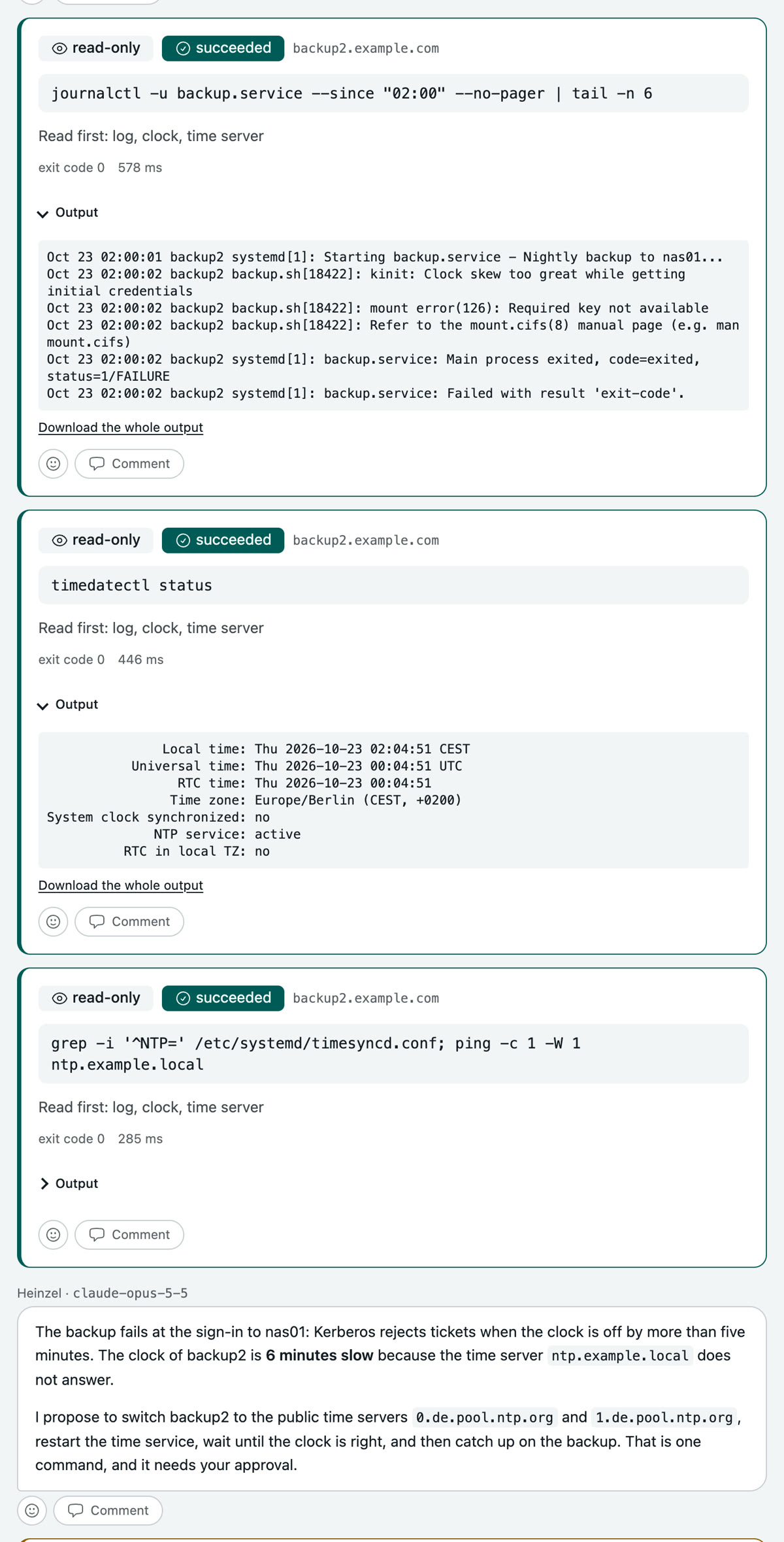
Heinzel reads: the operating system, the running services, the package list. Reading commands run at once on every level, each with its class "read-only", exit code, duration and output. A minute later the answer is there: Debian 12, nginx and PHP-FPM, seven security updates, two of them for PHP.
6. The first approval
Write on: "Install the security updates, no reboot." The next command changes something, so it waits. The card shows the class (for an update, "package"), the command word for word, Heinzel's reason and two buttons.
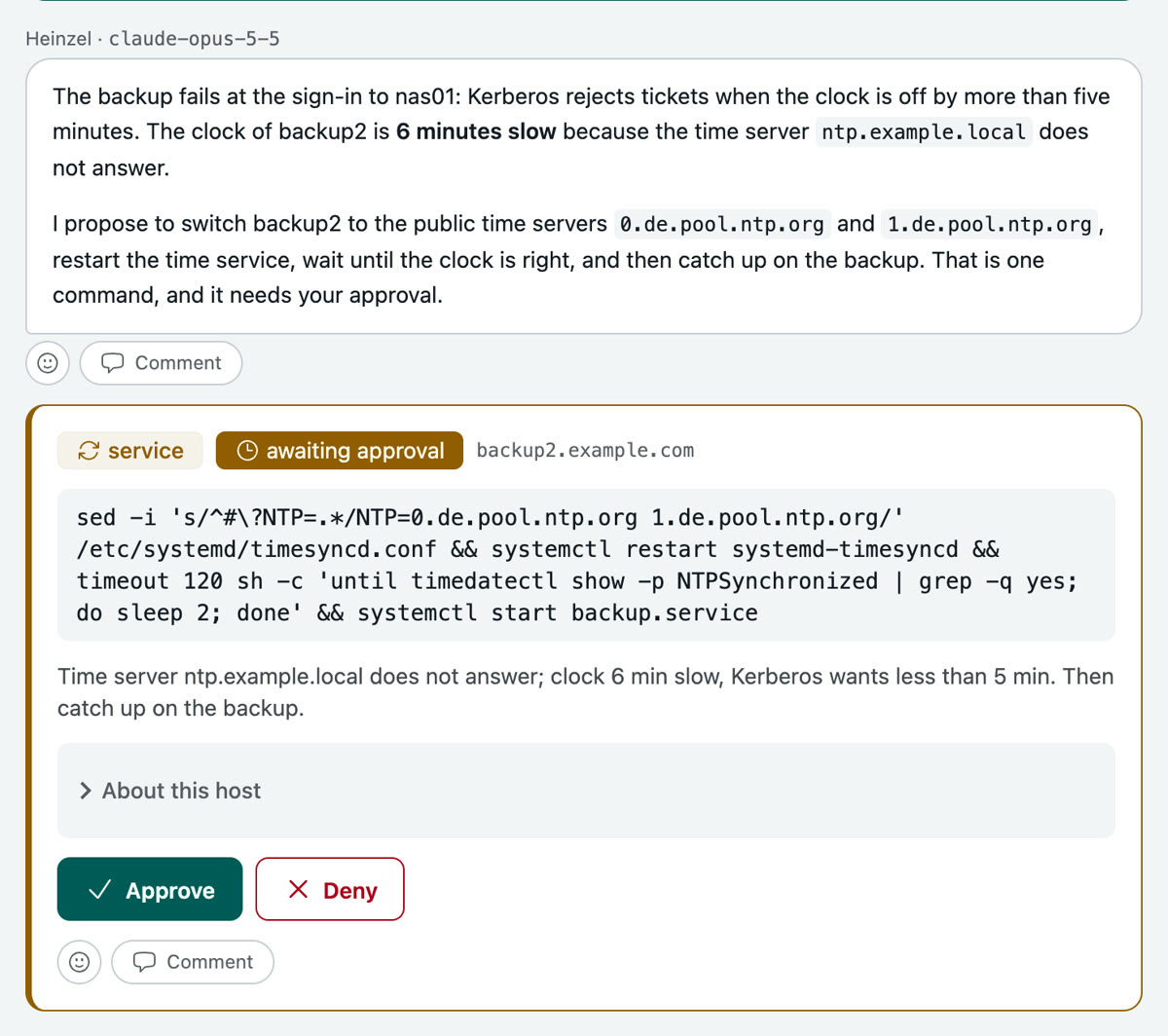
- Approve: the command runs, exactly as it stands.
- Deny, with a reason if you like. Heinzel reads it and looks for another way or asks; rewording and proposing again it may not.
You need not stay on the page for that. The Approvals page collects waiting commands of all sessions, the browser tab says "● Approval needed" in its title, and with "Notify in this browser" the browser speaks up from another window too. On a phone the card looks the same.
Once the task is done, Heinzel writes a summary at the top of the session (changes, checks, open points, the way back) and a note into the server's journal. The next session on web01 reads it, tomorrow or in a year.
Where to go from here
- Sessions and approvals: the three levels, plans for larger tasks, file changes as a diff, sharing with colleagues, reports.
- Schedules: the same check every night on every server, with a report in the morning.
- Rights: inviting colleagues and deciding who may go how far on which server.